 OnService
Duty hours in one tap. Bandwidth at a glance.
OnService helps residency teams stay effective. Residents and fellows log their hours with one tap. The app keeps their ACGME numbers and turns the hours into Bandwidth, an estimate of how much each person has left to give. Programs see the whole team on one page, for the residents who choose to share.
Free for trainees. No account and nothing to install.
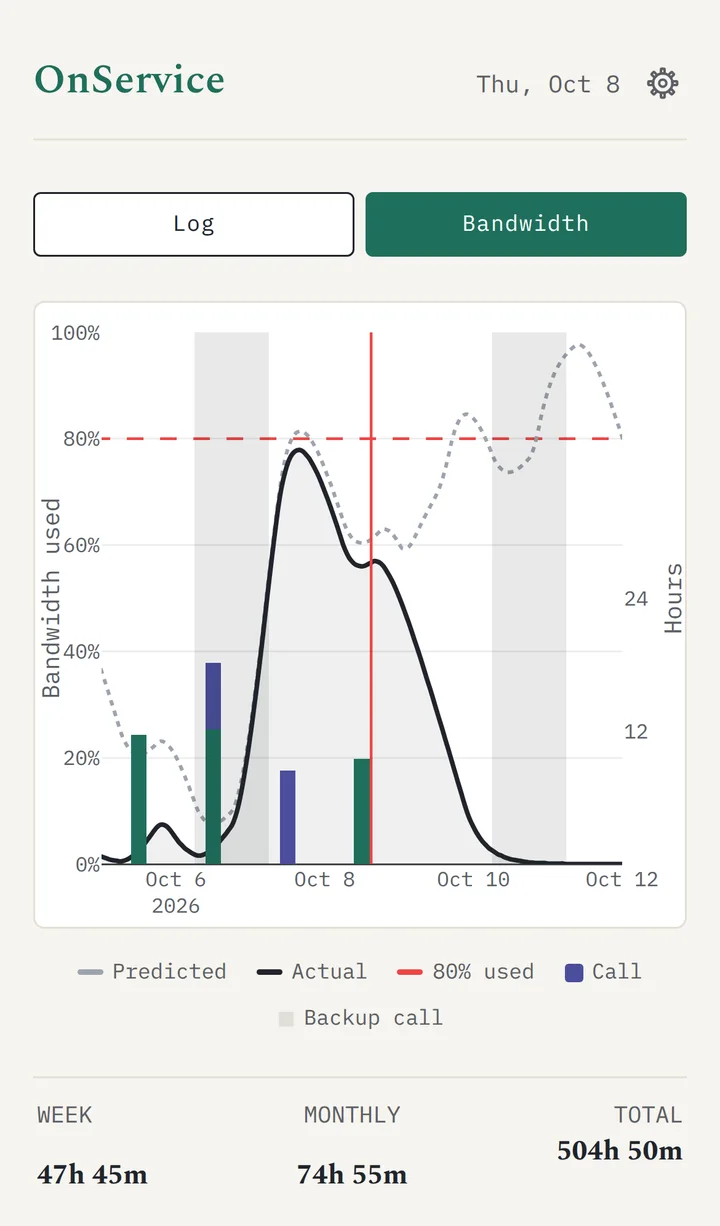
Bandwidth runs from 0 to 100, and 100 is fully rested. It is worked out from tiredness: every hour on duty draws it down, faster at night and past 12 hours in a row, and every hour off builds it back.
- Ordinary days build it back. Monday starts at 21, just after a weekend call. Four 12-hour days later, Bandwidth is back to 70.
- A call draws it down. Thursday's overnight call makes 27 hours straight. Bandwidth dips to 10 on Friday afternoon, below the 20 mark the app draws in red.
- A weekend off restores it. Two days away, and by Sunday night it is back to 99.
For residents and fellows
Logging hours should take a second. OnService makes it one tap, then shows you where you stand.
- One tap in, one tap out
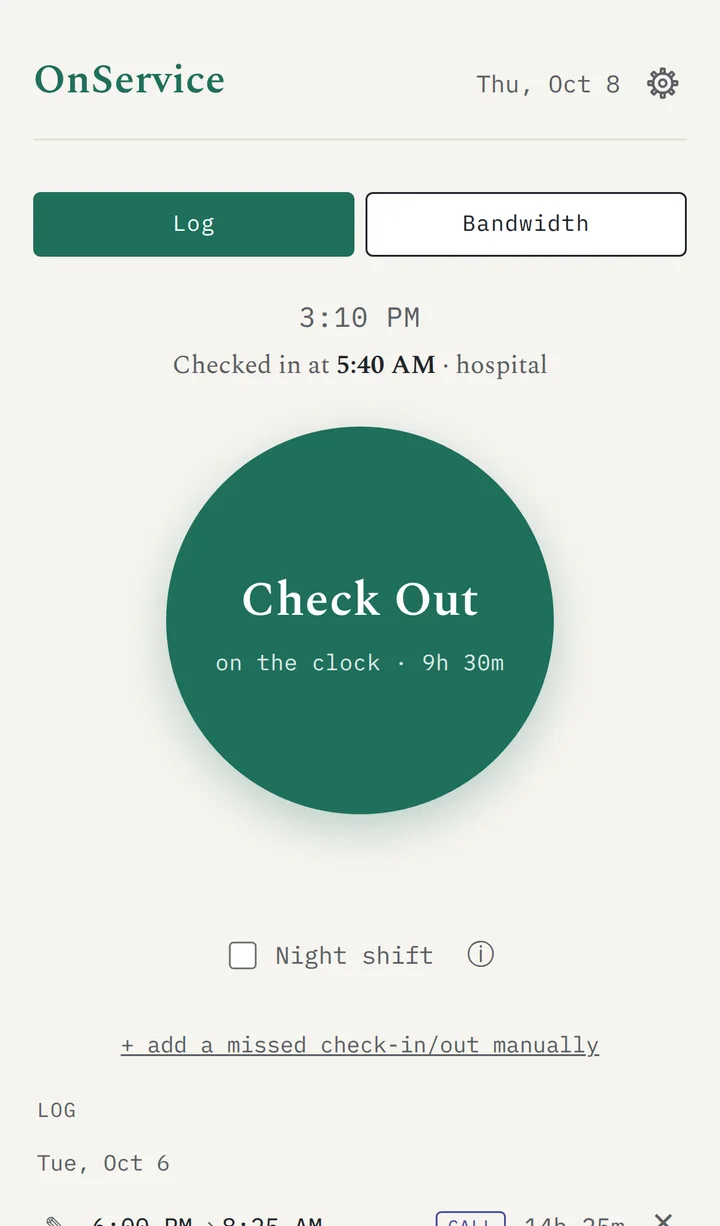
- A big button checks you in. The same button checks you out. Mark the time as Hospital, Clinic or Call, switch on Night shift for a run of nights, and fix anything you forgot by hand.
- Your ACGME numbers, kept for you
- Hours this week, this month and in total, with a 4-week average that changes color as you get close to 80 hours a week.
- Bandwidth
- See how much you have left, and where your call schedule will take you next week, so you can plan your rest ahead of time. If the score doesn't match how you feel, every number behind it can be changed.
- Yours to keep
- Your log stays on your phone. Copy it out as a spreadsheet (CSV) whenever you like.
- Free for trainees, always
- There is no account to make and nothing to download from an app store.
To keep it on your home screen: on an iPhone, open it in Safari, tap Share, then Add to Home Screen. On Android, open Chrome's menu and choose Add to Home screen.
For program directors and coordinators
The OnService dashboard shows how your team is doing on one page, drawn from what the residents log themselves. See a heavy stretch coming and rebalance while there is still time.

- Who is on duty now, since when, and how long their longest stretch has been this week.
- Hours for each resident: the last 7 days and the 4-week average, with a marker when someone is within 8 hours of the 80-hour limit.
- Five ACGME checks, flagged per resident: over 80 hours a week on a 4-week average; more than 24 + 4 hours in one stretch; under 8 hours off between shifts; under 14 hours off after 24 hours of duty; fewer than 4 days off in 28.
- Bandwidth over time for each resident and for the team, across 7, 14 or 28 days. The dashboard charts it as tiredness, the same score read from the other end.
- Hours you can file. Download any date range as a spreadsheet file named by program, team and dates.
- Your own coordinators. Add them by email. Each one signs in separately, and they can look but not change anything.

Everything here is worked out from logged hours, so treat a flag as a good reason to check in with someone. The dashboard is not an official ACGME report or a verdict on whether anyone is fit for duty.
How a program starts
- Write to us. Tell us your program and roughly how many residents you have. We reply with how to get started.
- Create a dashboard account. Use your work email on the dashboard sign-in page. We approve it once we have heard from you.
- Create your team. The dashboard gives you a join link and a join code.
- Send the link to your residents. Each one opens it on their phone, chooses the name you will see, and taps Join.
- Watch it fill in. Hours arrive within a minute of each check-in and check-out.
For programs
The dashboard is in early access. Write to us if your program wants to try it.
Turn on JavaScript to see the address
OnService is built by a surgery resident.